Showing posts with label Google. Show all posts

Tuesday, December 8, 2009

Google Chrome Now Supports Extensions

     Extensions (which called Add-ons with Firefox, Add-ins with Internet Explorer and widget with Opera) is a very helpful function of these browers. They help increase your experiment browsing by adding more and more feature for browser.

    Before, Google Chrome and Safari are two of the best browsers that do not support extensions. But now Google Chrome is really support extension (yeah, this is extension, not add-ons, add-ins or something else).

    However, only Google Chrome beta can test and enjoy this new function. The best beta of Google Chrome up to now is Google Chorme 4.0.249.30 Beta. You can download offline installer here [Learn more about beta version].

    To Install a Google Chrome Extensions, just go to https://chrome.google.com/extensions by Google Chrome 4 beta, find an extension and then click Install, continue click Install at Confirm Installation dialog and extension will be installed in a short time. You no need to restart Google Chrome and can use extension immediately.
Google Chrome Extensionx Install
Go To https://chrome.google.com/extensions and click Install to install new extension.
Google Chrome Extension Install
Confirm Installation

    To manage installed extensions, click Customize button and and then choose Extensions or you can type directly in address bar: chrome://extensions/. And then you can easily Disable/Enable, Uninstall or configure Options (if available) of a extension.

Google Chrome Extensions Manager

Friday, December 4, 2009

Google Public DNS - Free DNS Service

As you know, Open DNS is a free DNS service help you surf the web faster and more security. Yesterday, Google introduced a new their service, this is Google Public DNS. Which will be believed that help you:

  • Provide end users with an alternative to their current DNS service. Google Public DNS takes some new approaches that we believe offer more valid results, increased security, and, in most cases, better performance.
  • Help reduce the load on ISPs' DNS servers. By taking advantage of our global data-center and caching infrastructure, we can directly serve large numbers of user requests without having to query other DNS resolvers.
  • Help make the web faster and more secure. We are launching this experimental service to test some new ways to approach DNS-related challenges. We hope to share what we learn with developers of DNS resolvers and the broader web community and get their feedback.
First, you need to change network configuration of window to use Google Public DNS:
     - With Windows XP: go to Control Panel --> Network and Internet Connections --> Network Connections, right click to Local Area Network and choose Properties. In list This connection uses the following items, choose Internet Protocal (TCP/IP) and click Properties. In new windows, you click Use the folloing DNS server addresses, and at Prefered DNS Server, fill 8.8.8.8, and at Alternate DNS Server fill 8.8.4.4. Then OK to finish.
     - With Windows Vista or Windows 7, go to Control Panel --> Network and Internet --> Network and Sharing Center > View Status > Properties and then configure as XP.


Configure Google Public DNS 
Configure Google Public DNS

Read More About Google Public DNS:

10 Ways To Access Facebook and Twitter When Blocked [Update 3 New Ways]

     Now a day, social networks as Facebook and Twitter is used by so many users. But in a lot of company, these social networks are blocked by firewall, and you can not access. I will show you 7 ways to acces Facebook, Twitter or any blocked site easily.
7 Ways To Access Facebook and Twitter When Blocked
    1/ Use Proxy/Socks: this is a very popular way to visit any site you want without any restriction. All you need is find a good proxy to use. But when use proxy, your speed can be reduce because of the respond time of proxy server. You can also buy a private socks for the best quaility. If not, just find free proxy from sharing site as http://sockslist.net/, http://www.checker.freeproxy.ru/checker/last_checked_proxies.php, http://aliveproxy.com/socks5-list/ etc. All proxy or socks have the same format: 123.123.123.123:1234, with number before : are ip address, and after are port. To use it, you need configure you broswer as following:
Find proxy and socks
- Firefox: Tools > Options > Advanced > Networks > Settings > Manual Proxy Configurations > Socks Host.
- Internet Explorer: Tools > Internet Settings > Connections > Lan Settings > Use a Proxy Server for you LAN.
- Chrome: Options > Under the Hood > Change Proxy Settings > Connections > Lan Settings > Use a Proxy Server for you LAN.
- Opera: Tools > Preferences > Advanced > Networks > Proxy Servers.
Then fill IP and port and apply. To remove it, just take it back to default.
7 Ways To Access Facebook and Twitter When Blocked
Configure Proxy/Socks in Firefox

     2/ Use Fake IP Software: some software use for faking and hiding your IP address as Auto Hide IP, Real Hide IP, Hide IP NG, Invisible Browsing etc. They still can decrease speed but not to much.

     3/ Use UltraSurf: the easiest and fastest way to hide IP and access to any site you want. All traffic will be brought through UltraReach server. So that the speed is almost no change. Download UltraSurf, newest version is 9.6. After download, you just run it, and an Internet Explorer windows will open for using. You can also use a add-ons to use UltraSurf with Firefox. Note: to use in Firefox, you must download UltraSurf application, run it and activate in Firefox. UltraSurf is totally free and no need to setup. [Go to Homepage].
7 Ways To Access Facebook and Twitter When Blocked
UltraSurf with Internet Explorer

     4/ Use Free Proxy Website: there are many website help you surf web through a proxy. Two of the best site is HideMyAss and Defilter. All you need to do is input url of site in blank field and press enter.
HideMyAss using
HideMyAss service
Defilter using
DeFilter service

      5/ Use Google Translate: what? Yes, this is Google Translate, which can help you translate a website and browse it through Google Server. But you can see what have been translated, this mean just only text, and all images maybe still blocked. Just go to http://translate.google.com, input address, choose target language is your language, and source language is another. Or use this link and replace you url to red mark: http://translate.google.com/translate?hl=en&sl=ja&tl=en&u=http%3A%2F%2Ffacebook.com%2F&anno=2.
7 Ways To Access Facebook and Twitter When Blocked
Google Translate with Facebook

     6/ Use OpearTor: OperaTor is a free browser that base on Opera 10.0 and add more features as auto use proxy and clean privacy infomations. With proxy, you can access any webpage although blocked. Proxy can from USA, France of any country as Espanol, Italia etc. And you no need to find it yourself.
OperaTor
OperaTor auto search and apply proxy
      7/ Use OpenDNS: Open DNS is a free DNS server that offer you DNS resolution for consumers and businesses as an alternative to using their Internet service provider's DNS servers. By placing company servers in strategic locations and employing a large cache of the domain names, OpenDNS usually processes queries much more quickly, thereby increasing page retrieval speed. DNS query results are sometimes cached by the local operating system and/or applications, so this speed increase may not be noticeable with every request, but only with requests that are not stored in a local cache. First, you need to change network configuration of window:
     - With Windows XP: go to Control Panel --> Network and Internet Connections --> Network Connections, right click to Local Area Network and choose Properties. In list This connection uses the following items, choose Internet Protocal (TCP/IP) and click Properties. In new windows, you click Use the folloing DNS server addresses, and at Prefered DNS Server, fill 208.67.222.222, and at Alternate DNS Server fill 208.67.220.220. Then OK to finish.
     - With Windows Vista or Windows 7, go to Control Panel --> Network and Internet --> Network and Sharing Center > View Status > Properties and the configure as XP.
     Find more infomation at home page: http://www.opendns.com/
OpenDNS
Now, Another Free DNS Service is Google Public DNS, You can use as a Open DNS altenative Read more.
      8/ Use Opera 10 With Turbo Mode. When Turbo Mode is running, all connect will be through Opera server, so you will not be blocked as normal. Beside this, Opera Turbo let you browse web faster and lighter. Download Opera 10 here.
     9/ Configure Your Hosts File (Only for Facebook): first, locate your hosts file at \windows\system32\drivers\etc, double click at hosts (no extension) and open it with Notepad. Then add these lines at the end:

69.63.187.17 facebook.com
69.63.181.22 login.facebook.com
69.63.186.12 apps.facebook.com
69.63.187.17 www.facebook.com
69.63.181.22 www.login.facebook.com
69.63.186.12 www.apps.facebook.com


Tuesday, November 24, 2009

SEO and Web Promotion Techniques - From Basic To Advanced

  • Basic:
1. Incoming links : preferably of quality or of related topics. Press releases, articles, etc. Registering on certain specialized directories, or Yahoo, etc.
2. Managing your content well, or simply put not pissing off search engines (in this case it's more of a what not to do, such as duplicating your content, cloaking, etc.)
3. Discussion forums
4. Social media submission
5. Blog creation on different blogging platforms
6. Comment posting on Dofollow blogs

SEO and Web Promotion Techniques - From Basic To Advanced
Just Do Basic SEO, You Also Drive A Lot Of Traffic For Your Website

  • Moderate:
1.Optimize Page Content.
2.Optimize Page Title, & Descriptions (unique for each page)
3.Submit URL to dmoz, google, yahoo, msn & local directories in your area.
4.Link Building, Try get as many affiliates as possible, setup a page with a links to other sites and then contact them and ask would they consider do the same for you.
5. Update the site regularly, Search engines notice changes in content.
  • And more advanced!
* Link building skill
* Keyword analysis
* Copywriting
* Account management
* HTML skills
* On page SEO tactics like tagging/titling etc
* Marketing/sales strategies planning / SMO
* Web analytics
* Server side management
* Online public relation skills
* Awareness of all SEO tools/techniques
* Blog marketing
* Ability to research/search online
* Social SEO media

Wednesday, November 11, 2009

9 Google Adsense Placement Recipes

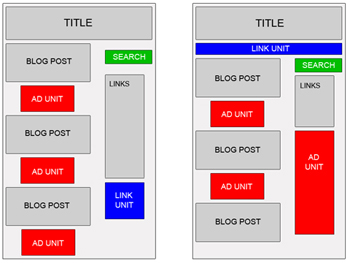
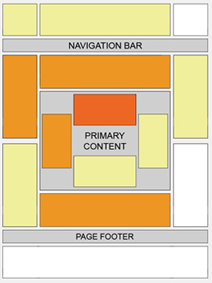
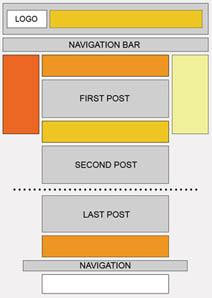
    Although placement of Google Adsense is base on personal idea, but you still need a recipe to put it alright and do not against Adsense TOS. At fisrt, you must choose the suitable size for each element of website, please follow this: Which Adsense ads format is the best?. And then, you can choose location of them, ex: New Ideas of Adsense Placement - New ways to earn more with Adsense. So that, you can get the best CTR for you site (read more 15 Effective Tips to Increase Google Adsense CTR).

    And there is 9 recipes:
  1. ABOVE THE FOLD, BELOW THE TITLE
    Ingredients:


    • 1 Medium Rectangle (300 x 250) Text Ads or 1 Square (250 x 250) Text Ads or 1 Large Rectangle (336 x 280) Text Ads or Banner (468 x 60) Text Ads
    How:


    • Place one of the above Google Adsense Ads at the beginning of your article, just right below the title.


  2. AT THE END OF AN ARTICLE
    Ingredients:


    • 1 Medium Rectangle (300 x 250) Text Ads or 1 Square (250 x 250) Text Ads or 1 Large Rectangle (336 x 280) Text Ads or Banner (468 x 60) Text Ads
    How:


    • Place one of the above Google Adsense Ads at the end of your article.


  3. NEXT TO AN IMAGE
    Ingredients:


    • 1 Medium Rectangle (300 x 250) Text Ads or 1 Square (250 x 250) Text Ads or 1 Large Rectangle (336 x 280) Text Ads,
    • 1 image (width 190 px, height 280 px) or 4 images (width 60 px, height 60 px)
    How:


    • First Approach


      • Create a table (width = 550), and divide it into two columns.
      • Place Google Adsense Text Ads into the left column.
      • Place your 190 x 280 image into the right column.

    • Second Approach


      • Create a table (width = 550), and divide it into two columns.
      • Divide the left column into four rows, and place each of your 60 x 60 images into each row.
      • Place Google Adsense Text Ads into the right column.

    Caution!
    You must place a border or a line between your images and your Ads, so it doesn't violate Google Adsense TOS (Terms of Service).
    New Ideas of Adsense Placement - New ways to earn more with Adsense


  4. BLENDED IN ARTICLE
    Ingredients:


    • 1 Medium Rectangle (300 x 250) Text Ads or 1 Square (250 x 250) Text Ads or 1 Large Rectangle (336 x 280) Text Ads
    How:


    • Place one of the above Google Adsense Ads into your article body, so it perfectly blends in. You can use this code for that purpose:

    • You may choose to make it left or right justified. According to Google Adsense Heat Map, left justified tends to bring the best CTR. But some webmasters said right justified is also working very well.

  5. RIGHT JUSTIFIED
    Ingredients:


    • 1 Skyscraper (120 x 600) Text Ads or 1 Wide Skyscraper (160 x 600) Text Ads or 1 Vertical Banner (120 x 240) Text Ads
    How:


    • Divide your webpage into two or three columns (left, middle and right).
    • Place one of the above Google Adsense Ads into the left or the right section.


  6. RIGHT BELOW IMAGES
    Ingredients:


    • 4 images (width 165 px, height 60 px),
    • 1 Leaderboard (728 x 90) Text Ads
    How:


    • Create a table (width = 728) with 2 rows.
    • Divide the first row into 4 columns and place each of the images in each column.
    • Place the leaderboard text ads in the second row.
    • Place this table below your header.

    Caution!
    You must place a border or a line between your images and your Ads, so it doesn't violate Google Adsense TOS (Terms of Service).


  7. BELOW THE HEADER
    Ingredients:


    • 1 Link Units (468 x 15) or 1 Link Units (728 x 15)
    How:


    • Place one of the above Google Adsense Link Units right below your header and match its color with your website theme.


  8. BLENDED IN NAVIGATIONAL LINKS
    Ingredients:


    • 1 Link Units (468 x 15) or 1 Link Units (728 x 15)
    How:


    • Place one of the above Google Adsense Link Units right below your header.
    • Place your navigational links below or above that Link Units and set their fonts to "Verdana, Arial, Helvetica, sans-serif" 11 px.


  9. CAMOUFLAGED AS NAVIGATIONAL LINKS
    Ingredients:


    • 1 Link Units (468 x 15) or
    • 1 Link Units (728 x 15)
    How:


    • Place one of the above Google Adsense Link Units right below your header and make it looks like your navigational links.

Thursday, November 5, 2009

List Highest Paying Google Adsense Keywords - Sort by Alphabet and Categories

List Highest Paying Google Adsense Keywords - Sort by Alphabet and Categories
     Note: All keywords are listed only for consult. If you really wanna make money from Google Adsense, I recommend you invest in your knowledge and interesting, don't run after keywords! I would suggest people to stop misusing adsense by using it only to make money by looking for hghh earning keywords and other such things. Its going to cost you in the long run. Remember adsense income does not grow on trees, its paid for by advertisers who are looking for new customers. Do them a favour by concentrating on creating unique content that you are good at. Relevant ads would appear and potential customers would click on them if they find it useful.

List Highest Paying Google Adsense Keywords - Sort by Alphabet and Categories


List Google Adsense Keywords - Sort by Alphabet and Categories

Sort by Alphabet:

A - B - C - D - E - F - G - H

I - J - K - L - M - N - O - P 

Q - R - S - T - U - W - X - Y - Z
Sort by Categories:
Other Lists:
Note: This post will be picked up and update when I have a new keywords list.

Saturday, October 24, 2009

Top 10 AdSense tips You Must Follow

AdSense Tip #1: Find your keywords

    Before placing ads on a web page, check its keyword density. A free and advanced tool for finding the most prominent keywords in a page can be found here: SEO Density Analyzer. Copy the most important keywords to a text file ([web page name]-adsense-keywords.txt).


         AdSense Tip #2: Improve your keywords

     Get keyword suggestions from Overture Search Inventory and from Google AdWords Sandbox. Get new keywords that can help you improve your ad relevance. Enter the keywords from [web page name]-adsense-keywords.txt and save the suggestions to [web page name]-adsense-suggestions.txt.

AdSense Tip #3: Keep your website focused on a theme

     Use the keyword suggestions to enhance your web pages and to build theme-based content. And also try to get your keywords into the anchor text of your incoming links as much as possible. Don’t forget that Google AdSense is keyword-targeted advertising: Google AdSense bases its advert topics on your websites content, this means that content-rich websites of a popular topic should attract a large amount of ads.

AdSense Tip #4: Write a new page every day

      One of the best tips is to add a new page to your web site every day. The more content you have, the more visitors you will get. Put an Adsense unit on each and every content page of your site. But where? You will find more about that from the next AdSense tips.


Top 10 AdSense tips You Must Follow

AdSense Tip #5: Choose the right AdSense format
  >>Read more: Which Adsense ads format is the best?
    Wider formats are successful because the ads are compact, easy to read and are complementary to the content. The top three AdSense formats are:
336×280 large rectangle
300×250 medium rectangle
160×600 wide skyscraper

Another successful format is the 468×15 horizontal ad links, that can be placed under your navigation bar.

AdSense Tip #6: Color tips

    When creating your Google AdSense ads it is recommended to use the color scheme and style of your website so that the ads blend in well. Ads without background color and borders perfom better than ads within borders with background color.

Create a custom AdSense palette:
border color = background color of your web site
background color = background color of your web site
link color = blue, color of your links
url color = black, #999999
text color = black, #333333, color of your main content
You can also rotate your color palette: select multiple color palettes that blend with your site to create variety.

AdSense Tip #7: Position tips
>>> Read more:New Ideas of Adsense Placement - New ways to earn more with Adsense
     Visitors tend to look at the big headlines to see if your page is worth reading. If you get them interested, they will read the text and look for your navigation links.

    Place the AdSense ads in a prominent place around the top/left part of your page or under your headlines, where your visitors are most likely to look at.

    If you have an article page with a long body of text, the bottom of that article is a good place for AdSense ads because your visitors read the text and then they want more resources.

AdSense Tip #8: Increase the number of ads, but not too much

     If you have a lot of text on a page, use multiple AdSense units. You can use up to three AdSense units on a page, two AdSense search boxes and one unit of ad links.

     Link units allow the user to refine what they’re interested in. So if they may not be interested in specific ads on your page, they might be interested in a particular topic, and by clicking on a link unit and a link in the link unit, they’ll be able to specify that they’re interested in that specific topic and get a lot more options and variety on the ads that might appear.

     AdSense for Search allows visitors to search Google.com or your sites (up to 3 domains). You earn money whenever they click on the ads that come up on the search results. If you click the Open search results in a new browser window checkbox in the AdSense for Search settings, you won’t lose your visitors.

AdSense Tip #9: Preview Google ads

     You can find out what ads will be served by Google AdSense if you install Google AdSense Preview Tool, a very simple tool available only for Internet Explorer 6.0. Click to advertiser sites without generating invalid clicks, and easily add their URLs to your URL filter list. Because AdSense uses geo-targeting, Google serves different ads for other countries. Instead of faking your IP or travelling abroad to test your ads, use this AdSense tool to see what ads see your visitors from France, Germany or other countries.

     There may be no Google AdSense ads available for your webpage, so Googlw will display Public Service Ads. You can hide them using alternate colors or images. Make sure you include the image in a simple html file as a link (use target=”_top”). The image size should be the same as the dimension of AdSense units. In the alternate url box, enter the absolute url of the html file.


AdSense Tip #10: What not to do

Don’t click on your own ads
Don’t ask others to click on your Google ads
Don’t manually change AdSense code
Don’t place Google ads on sites that include prohibited content (e.g.: adult sites)
Don’t employ cloaking, hidden text or farm links
Don’t use AdSense ads on the same page with similar ads (e.g.: Yahoo Publisher Network)

Wednesday, October 21, 2009

15 Effective Tips to Increase Google Adsense CTR

    How to make more money with Google Adsense? Get more clicks on ads. We all want to increase Google Adsense CTR i.e. click through ratio, because the higher times the surfer clicks the Adsense ad, higher is the payout to you. So here are 15 effective ways to improve your Adsense CTR.


    You can see:


  • Which Adsense ads format is the best?

  • New Ideas of Adsense Placement - New ways to earn more with Adsense


  • How to increase Google Adsense CTR?

    • Post Adsense ads them on text rich pages and make sure that Adsense had a bunch of keywords to work with. Getting Higher paying keywords is better of course.
    • Get rid of public service ads, which pay you nothing for your efforts. Here are some ways to avoid getting PSA’s.
    • Avoid titles like the approved ‘Sponsored Links’ and ‘Advertisements’ above the Adsense ads. Why do you want to tell the world they are ads when google already puts ‘Ads by Gooooogle’ with them. These two terms are the only ones allowed by Google TOS. Any other terms will get your account terminated. Remember to avoid these 15 Adsense mistakes.
    • Use section targeting - you can target an ad unit to a specific section of your blog, as well as block out irrelevant sections like navigational links. Useful to get more targeted ads.

    What is the best Google Adsense Placement for CTR?

    • Place Ads above the fold, i.e. you dont have to scroll down to see the ads. Moreover it loads before your entire page does. The more the visibility, the more chances a reader will click the ad.
      Best Placement for Google Adsense
    • Provide some free space around ads so that they stand out and users know where to find them. Dont clutter up the ads inside your content.
    • Experiment by changing the location of advertisements. Track them by channels to see which location works. Sometimes unusual locations can can do wonders for your CTR. Google Adsense support provides some good ideas for better blending
      Google Adsense Placement
    • Many experienced Adsense users have reported better CTR with vertical ads rather than the horizontal ones. But that really depends on your site structure.
    • Usually it is recommended to place towers on your right, as users tend to use the mouse to scroll the bar on the right side wiht a higher chance to see your ads. Some have reported doubling CTR’s by placing towers to the left rather than the right, as people have got bored of seeing ads on the right, it has something to do with the sidedness of the brain which I do not understand and there is a tendency to read from left to the right.
    • Many sites will have small ads in the top right hand corner, as they claim it is the first place where the eye sees.
    • An excellent article on Eyetracking - What We Saw When We Looked Through Their Eyes helps to tell you where users actually see first and in what order.
    • Forums are tricky becasue they have a different kind of navigation, readership and participation. Here are some ad placements suggested by Google which work best for forums
      Google Adsense for Forums

    Best Google Adsense Link Colors to get higher CTR?

    • Match the colors of your ads with the colour scheme of your site. Blending with your sites color profile helps to identify them not as ads, but as links similar to those of your site. The more the AdSense looks like part of your site, the higher CTR you will get. You can also match the Adsense fonts with your website font design for great results.
    • Blend ads with your page - remove the borders by having a similar color as your background helps to show ads as being part of your site. Do not blend text or the ‘Ads by Gooooogle’ with your background color as it is against Google TOS (Google does not like hidden text!). However, such blending may not work for you always due to banner blindness. Neither do they see the ads, not do they click on them. So sometimes a bold contrasting ad may work better depending on your website design.
    • Experiment by changing the colors, background of advertisements. You have to find out what works best for your site, not others. You can also rotate Adsense colors to reduce ad blindness.
    I hope these tips help to get your Adsense CTR up by at least 100% if not more. Good luck and make more money!

    Via: QuickOnlineTips

    Monday, June 15, 2009

    Google Blogger Has Been Added Google Adsense

        Google Blogger (Blogspot) is one of the most popular blog platrom. Google provide it completely free without any ads. Google only add one host publisher id in Google Adsense code (if you're an Adsense Publisher and advertise in your Blogspot.).


        Today, when posting new article for my blog, I've just see an Google Adsense ads in the right of browser. This mean Google want to make money from user of Blogger. And I really happy because of this. I hope with this ads, Google can support and develope Blogger better and better.

    Thursday, February 19, 2009

    Make Money With Google Adsense For Domain - Now Available In All Countries

        Adsense for Domains, what is it? Its a advanced concept for all of us however Google has just announced on their blog that they have launched Google Adsense for Domains to adsense web publishers in the USA and will continue to open the program for publishers in other countries in the near time to come. Adsense for domains is just another ad serving program for domains that are undeveloped.

        Google provides a code that web publishers can add on their undeveloped pages or parked domains so that they may serve Ad’s, Links and Search Results on those particular domains. You may have heard of Google Adsense for Domains before, however, you may know of it by another reputation. This concept was rolled away before nevertheless it was known as Domain Park. In the past this program has been very controversial owing to it delivered poor quality search results and traffic.

    • More Informations From Google:

        AdSense for domains allows publishers with undeveloped domains to help users by providing relevant information including ads, links and search results.
    With AdSense for domains, users can find relevant information rather than see empty pages or "page not found" errors. To ensure positive user experience and the quality of our network, these sites are monitored for policy compliance and prohibited from using text and images designed to confuse users.
    AdSense for domains provides advertisers with additional opportunities to find their customers, and ads on these pages convert well. In addition, we regularly receive requests from advertisers who have found domains to be an effective way to reach their users.
    If you have undeveloped domains, then AdSense for domains can help your users. To get started, check out our setup instructions, and visit our Help Center for more information.


        Q: What domains are eligible for AdSense for domains?
    A: AdSense for domains can be used on any domain that adheres to Google’s policies.

         Q: Is Google involved in the selection or registration of the domains in the AdSense for domains program?

         A: Google is not involved with the selection or registration of these domain names, and is not in a position to arbitrate trademark disputes between the registrants, our partners, and trademark owners. Accordingly, we encourage trademark owners to resolve their disputes directly with the registrants or registrars. As a courtesy to trademark owners, Google provides a simple publicly available complaint procedure and, once notified of a legitimate complaint against a specific domain, Google will no longer serve ads to that domain. For instructions on how to file a complaint, please refer to the Trademark Complaint Process page. Additionally, a copy of our publicly available trademark policy is available online.

         Q: Where can I find more information about the AdSense for domains program?

         A: Please refer to our Help Center for more information.

    Source: Host, Hosting, Domain, Coupon, Promotion Codes